USAGE GUIDE
Your first task
on your Mac
Open the desktop App and give a task locally or in a Feishu project group. Choose a project and model, review the result and continue.
Start with your first messageStart with the desktop installation guide, then choose a local conversation or connect Feishu. Existing installations do not need another scan.
APP
Your desktop workspace
Open Chat to give a local task. Groups · Projects selects the folder, model and thinking depth. Models · Library manages accounts and API keys. Settings contains Feishu connections and software updates. Start with a read-only task, then adjust execution permissions as needed.
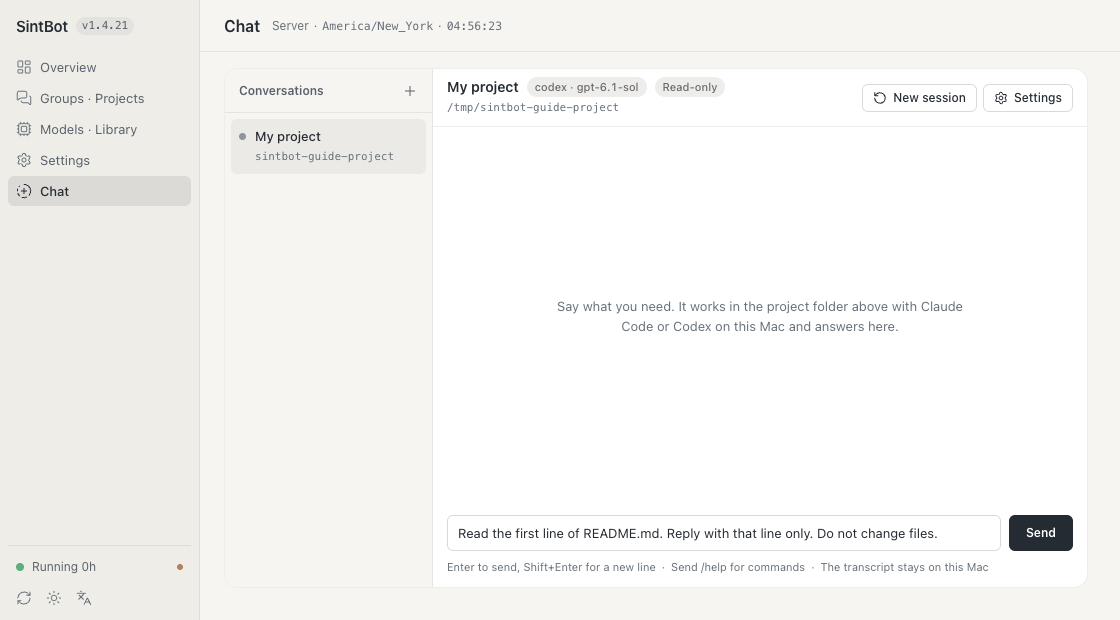
Local conversations need no Feishu account. To work in a Feishu group, connect it by scanning first. Both routes use the same project and model settings.
FEISHU · GROUP WORK
Start work in your Feishu group
Complete the Feishu walkthrough first. In the new project group, ordinary messages are tasks. Mention the bot if your group requires it. Attach files or screenshots to the message and explain what you want done.
Check the group and project in the console
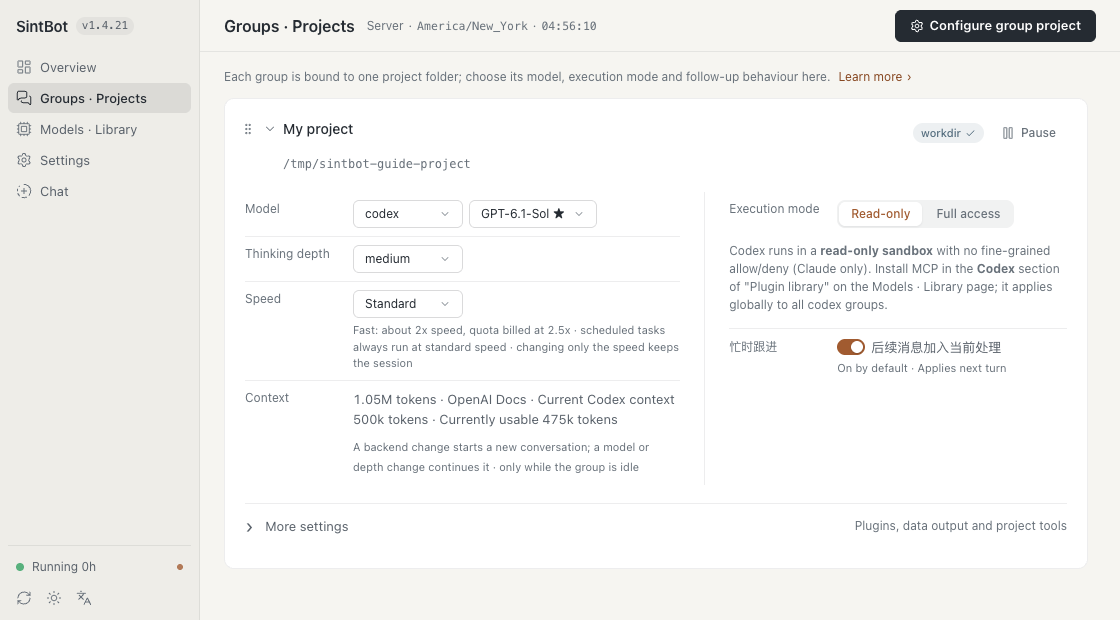
Open Groups · Projects, find the group and check its project folder, executor, model and thinking depth. Each group has its own project. Verify these before asking for file changes.
Follow progress
Read the reply card in the same group. Send /status to check activity and the queue.
Add instructions
Send a follow-up while the task runs. It joins the current turn when available, or waits in the queue.
Stop or start fresh
/stop stops the task and clears queued messages. Use /new while idle for a new conversation.
Closing the desktop window leaves the bot running. Keep the Mac on and connected, with the SintBot service running, to continue sending tasks from Feishu.
WECOM · CHATS AND GROUPS
Start working in WeCom
Finish the WeCom setup walkthrough first. In a direct chat, send tasks without a mention. In a group, @mention the bot for every task or group command; @All does not trigger it. Start with a small task to confirm the project, then continue with longer tasks. The bot replies when a task finishes; progress is not shown while it runs.
- Send files and images directly in a direct chat. In groups, the bot receives only text and messages that mix text and images: send images together with text, and put files in the project folder first or send them in a direct chat.
- Ask the assistant to send project files and images back to the current chat. Size limits follow WeCom’s rules.
- Use /status for status and /stop to stop a task. Recalling a message does not stop it.
- Group history queries, editing, recall and reactions are unavailable. Do not automatically resend an unconfirmed delivery.
01
Start with a small task
Use local Chat or the group connected to your project. Start with a read-only request whose answer you can check against a local file.
Read the first line of this project’s README and reply with that line. Do not change any files.- Send the request
Write it in the configured project group. If your setup requires mentions, mention the bot.
- Follow the response
SintBot works in the bound project directory and returns progress and the final reply to the same conversation.
- Check the result
Compare the reply with your README. This checks the full path from group message to agent and back.
Before the first message, complete the installation and connection steps. A successful package installation alone does not verify a model turn.
02
Define the task and success criteria
Include the outcome, the relevant context, what should stay unchanged and what a completed result looks like. Attach a screenshot or file when it carries information that words cannot.
Improve the homepage navigation on phones.
Keep the current fonts, colors and desktop layout.
Use the attached screenshot to locate the issue.
Check widths of 390 px and 768 px, then send a screenshot and explain what changed.
When you want an investigation first
Ask for the cause, affected files and a proposed fix before editing. For example: “Find why the sign-in button fails. Read the relevant code and logs, then explain the cause and the smallest fix.”
When you want it to make the change
State that it can edit, name the intended behavior and give a checkable outcome. Mention any files or behavior it should preserve.
When a task has several parts
List the deliverables in order and identify dependencies. State which parts can be handled independently and how their results should be checked together.
03
Review results in the group
Progress and the final result return to the project conversation. Depending on the task, the result may be an explanation, changed files, an image, a report or a preview.
- Read the outcome
Check what changed, how it was checked and whether any part still needs a decision.
- Inspect the artifact
Open the delivered file or preview. For code, inspect the changes in the project and run the checks appropriate to the work.
- Give precise feedback
Point to a section, file, screenshot or behavior. Say what should change and what is already right.
The phone layout is right. Keep it.
Make the active navigation item easier to see, using the existing accent color.
Send an updated screenshot after checking the same two widths.Send additional instructions directly in the project group. Busy follow-ups are on by default for Claude Code and Codex; they queue when disabled or unavailable. “Joined” means the model has read the message, and long-running tools can delay that step.
The console’s Message action also works while a group is busy. It follows the group’s follow-up setting: the message waits for model reading or joins the queue. “Accepted” does not yet confirm that the model has read it. Start a new session or switch models only after the group is idle.
04
Choose an agent, then its model
The coding agent executes the work. Its configured model service handles the model requests. These are two separate choices.
| Coding agent | Model or service | Configuration |
|---|---|---|
| Claude Code | Claude | Your Claude Code account and configuration |
| Claude Code | GLM, MiniMax, DeepSeek | A compatible endpoint and your provider credentials |
| Claude Code | Kimi or another compatible service | A custom compatible endpoint |
| Codex | GPT | Your Codex account and model configuration |
Use the project’s model configuration to choose the route and model. Keep provider keys in local configuration; do not post them in the group. Available choices follow the agent and accounts configured on the machine.
Ask SintBot to record decisions and unfinished work in the project. Switching the backend starts a fresh conversation; changing the model or thinking depth on the same backend continues it. Saved files and shared notes remain either way.
Before scanning, SintBot reads the selected executor’s live model list and saves its recommended model and thinking depth for the new group. The setup page shows the selected values; you can change them later in Groups · Projects. If the live recommendation is unavailable, setup stops before creating a new app: check the executor’s login and network, then retry. Existing group choices are preserved.
Model and thinking depth are chosen per group: change them on the console’s group card, or send /model in the group for a tap-to-pick card and confirm; text such as /model high also works. Either needs the group to be idle.
Codex speed (Fast). Codex models have a Speed option: Standard or Fast, Standard by default. Three ways to turn it on: send /model fast in the group (/model standard to go back); the /model card gains a Speed row, pick then confirm as usual; the console group card gains a Speed dropdown. Changing only the speed never resets the session, works while a task is running and applies from the next message. It is remembered per group and per model card: Fast on GPT in one group does not affect that group’s other models. Only models with a Fast tier can turn it on; otherwise the request is refused and nothing changes, and switching to a model without it returns to Standard with a note. The receipt states the cost: the model is unchanged, requests are queued at a higher priority, about 1.5–2x faster depending on the model, and included subscription usage is charged at 2.5x (purchased credits at 2x). When Fast is off, every turn explicitly asks for standard speed. When App Server explicitly reports a fallback, the card footer omits Fast. Older executors and the exec route may not report the effective tier; a Fast label alone is not proof that acceleration took effect.
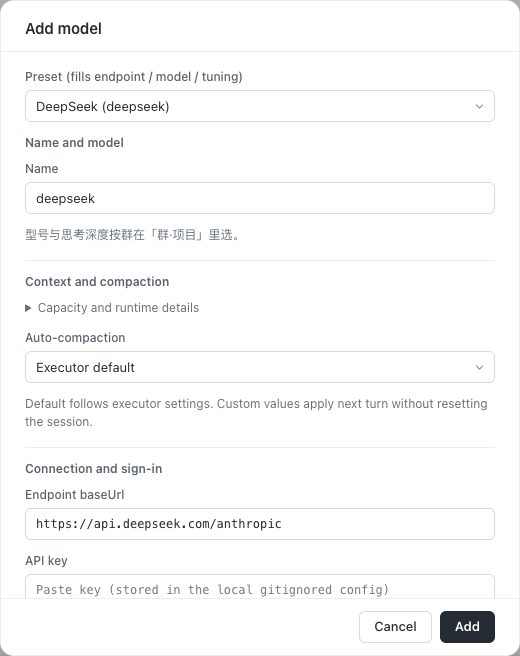
DeepSeek. The model library includes a DeepSeek card, selectable even before a key is entered. Enter your own API key in Models · Library before running it. Select its model and thinking depth per group in Groups · Projects; the preset model is deepseek-flash[1m]. Without a key, the turn is refused before it starts with “this model card has no API key yet”; no other credentials are borrowed.
Model settings are grouped into model and reasoning, context and compaction, and connection. For Codex, choose the executor default or a custom context window; known limits are checked on save. Compaction also offers default or custom, with numeric inputs shown only when needed. Codex uses a threshold and Claude Code a compaction window; either may compact earlier. Existing explicit global values become independent settings on existing models. Changes apply to the next turn and preserve the session. Capacity details distinguish requested settings from runtime reports.
For Claude Code groups, SintBot can compact the current session between turns when the CLI reports compaction support and the context reaches half of a custom compaction window. It uses a spare concurrency slot and stays silent in the group. A new message interrupts compaction before starting its turn; a window of 0 disables only idle compaction; compaction during a turn follows the executor’s defaults. /hud shows the compaction line and last completion time. Claude subscription quota prefers rate-limit events reported by the executor.
05
Save decisions in your project
A conversation is useful while work is in progress. Project notes keep the decisions that the next task or model will need.
- Project rules: naming, coding conventions, design choices and verification steps.
- Current handoff: what is complete, what is pending and the next concrete action.
- Useful evidence: relevant files, confirmed causes and links to decisions.
Record today’s decisions, completed work and remaining tasks in the project handoff.
Include the files and checks needed to continue.
Keep it concise and preserve the existing project conventions.
Saved notes are shared project context. Unsaved chat details do not automatically become shared memory. Check the handoff before changing models or starting a new session.
06
Share screenshots, files and previews
Attach a reference to the group and describe how it should guide the work: layout, typography, colors, interaction or a particular component.
Build or refine an interface
Name the page or component, specify what to preserve and ask for desktop and phone checks. Review the delivered screenshot before opening the interactive preview.
Generate or revise an image
State the image’s purpose and the changes you want. When the existing image matters, provide it as the reference and identify the parts to keep.
Review an annotated design
Attach an annotated screenshot to the group and keep revisions in the project. Refer to a specific image or comment when requesting the next version.
Continue after browser sign-in
If a browser task needs your sign-in or verification, open the takeover entry sent to the group, complete the step yourself and tell SintBot to continue. Do not send passwords or verification codes in the conversation.
07
Manage everyday project work
Open SintBot from Applications or the menu bar. Closing the window or quitting the App keeps the service running. Choose “Stop SintBot and Quit” to stop it. Upgrade the service in Settings → Software update; replace the App using a new DMG when an App update is available.
Keep a clear boundary between the project, the people giving it work and the permissions available to the agent.
Project groups
Each group is bound to its project. The console overview shows concurrency, group state, configured reasoning effort and the latest context usage. Select a group to view tasks, then expand replies, tools and usage. Row icons provide message, stop and new-session controls.
Permissions
Begin with read-only requests. The project administrator chooses the permissions required for editing files and running commands.
Routine work
Keep recurring checks in a project checklist. When a check is due, send the task to the project group and review the returned report.
Model services
Project files stay on the machine; chat messages and model requests use the configured external services. Account terms and usage limits apply.
Starting and stopping the 1.4.23 foreground installation
Keep the terminal running while you use the connected group. Press Ctrl-C and wait for shutdown to finish. For a normal restart, use the same start command from the installation guide; do not rerun initialization.
To upgrade, check Settings → Software updates in the console, then press Ctrl-C, rerun the one-line installer and start with the same command. If your own launchd agent runs SintBot, Upgrade now in the console installs the new version and switches over once every group is idle, and restores the previous version if the new one does not connect.
If a group is paused or startup reports unresolved receipts, preserve the state and inspect what happened, then restart or seal that group as the installation guide describes. Do not delete the journal or repeat a task blindly.
Open the start and verification steps →Ready to connect a project?
The installation guide takes you from the local package to a verified group reply.
Open installation guide