
INSTALLATION 1.4.23
Install SintBot
on your Mac
Download the desktop app, move it to Applications and open it. Start a local conversation or scan to connect Feishu.
APP · macOS
Three steps to your first task
For Apple silicon Macs running macOS 12 or later. App 0.1.1 includes SintBot and Node.js; no separate Node.js or npm installation is needed. Install and sign in to Codex or Claude Code first.
01 Move SintBot to Applications
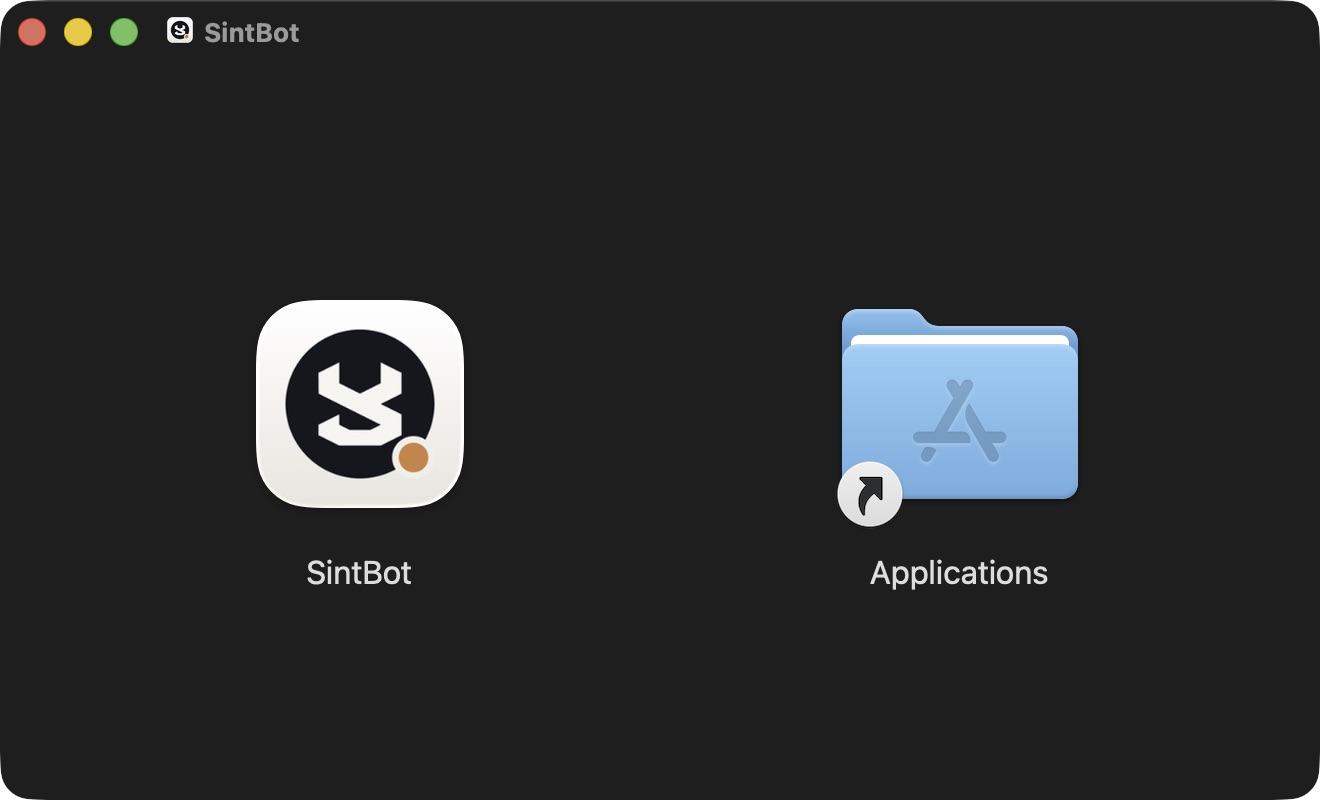
Open the downloaded DMG. Drag SintBot on the left to Applications on the right, then open SintBot from Applications. You can eject the disk image afterwards.
02 Choose a project and connection
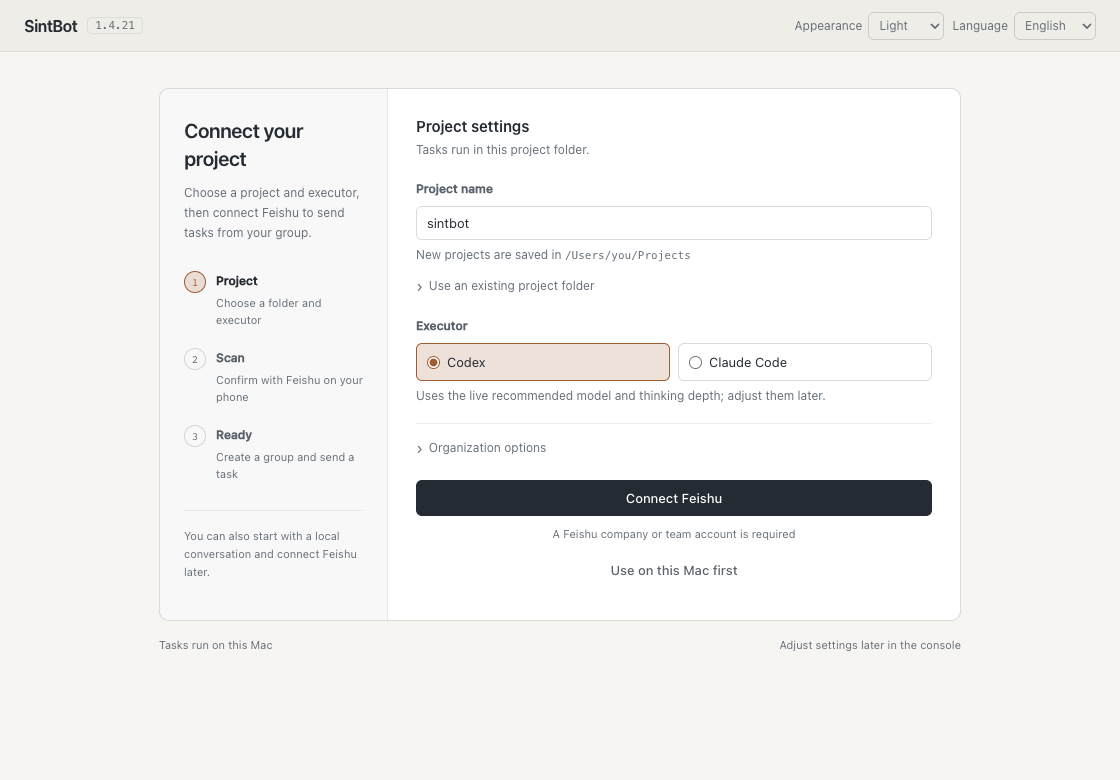
On first launch, the App prepares its local service and opens setup. Name your project and choose Codex or Claude Code. Choose “Use on this Mac first” to start locally, or scan with a Feishu China team identity to connect a project group.
03 Send your first task
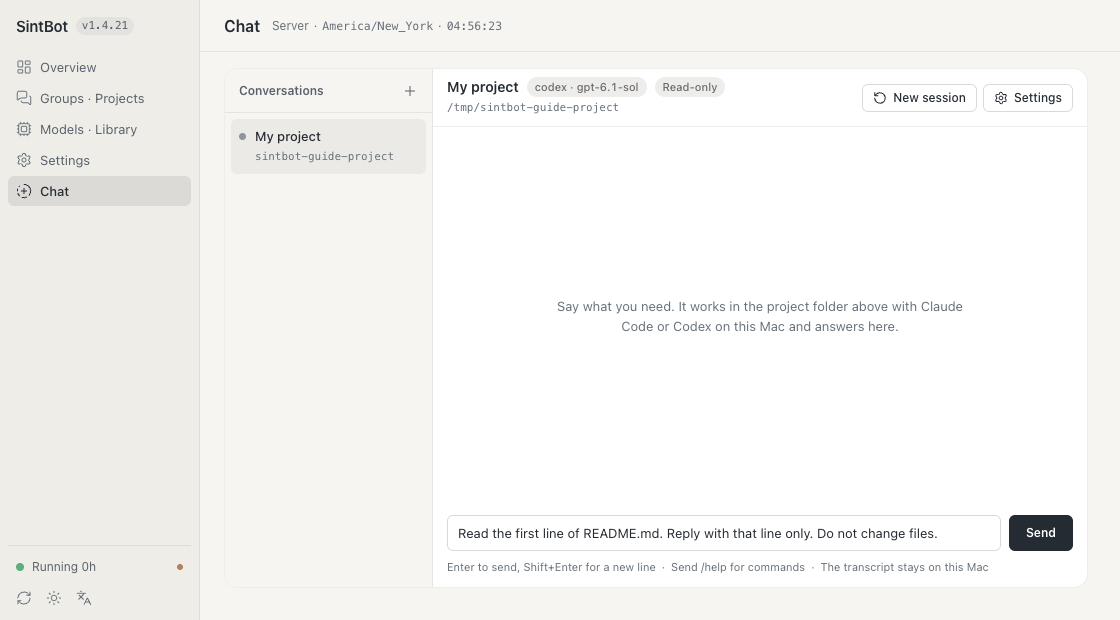
Use Chat for local conversations, or the new project group for Feishu. Ask “Read the first line of README.md and reply with that line only”, then compare the reply with your file. The screen below shows where to enter a local task.
Open SintBot from Applications or the menu bar next time. No repeated scan or open terminal is needed. Continue to the usage guide for models, follow-ups and updates.
Close the window, quit or stop?
Closing the window leaves the App in the menu bar. Quitting the App leaves the bot running. Choose “Stop SintBot and Quit” to stop both. A service installed by the App stays stopped until Start or the next App launch. An adopted service keeps its original login settings.
“Remove Background Service” preserves settings and history; it does not delete your project.
How do the App and service update?
Upgrade the service in Settings → Software update. A managed service waits for tasks to settle before switching, and rolls back if reconnection fails. To update the App itself, download the new DMG, quit the App and replace it in Applications. An existing SintBot service is reused; avoid installing a second instance.
Setup did not open on first launch?
Check the App status page. An existing service opens its console directly. If an executor is missing, install and sign in to Codex or Claude Code, then retry. Open the log from the menu bar for the specific error.
The official DMG is signed and Apple notarized. If the download is damaged or cannot be verified, download it again from the official release. Keep system security protections enabled.
FEISHU · PROJECT GROUPS
Connect your project to Feishu
Choose a project on your Mac, confirm on your phone, then send a task in the new group. Desktop and terminal installations share this setup flow.
- 01Project
- 02Confirm
- 03Create group
- 04First task
Have Codex or Claude Code working on your Mac. Sign in to Feishu China on your phone with an enterprise or team identity; create or join a team first if needed. Your organization may require administrator approval.
01 Choose your project on the Mac
First launch opens setup. Enter a project name and choose the executor. Use the new project folder or expand “Use an existing project folder”. Select “Connect Feishu”.
If you are not an organization administrator, expand “Organization options” and select “I am not an organization administrator”. An administrator will need to finish app availability and publication.
02 Confirm with Feishu on your phone
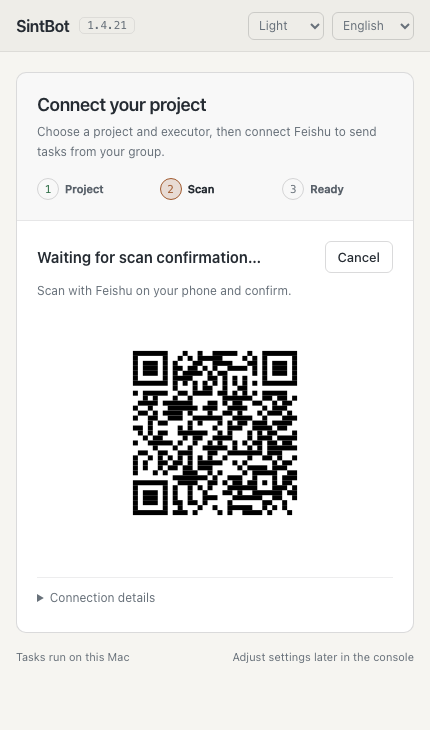
Keep setup open on your Mac. Use the scanner in the Feishu mobile app to scan the code on your own setup page.
- Check the enterprise or team selected on your phone.
- Review the app’s team and requested permissions.
- Confirm on your phone, then return to your Mac.
These images show setup states. The pictured code is for this walkthrough; use the fresh code on your own Mac to connect.
03 Wait for the app and group
SintBot creates the app, checks permissions, creates a project group and saves configuration. Keep the window open. Expand “Connection details” to follow progress; setup opens the console when complete.
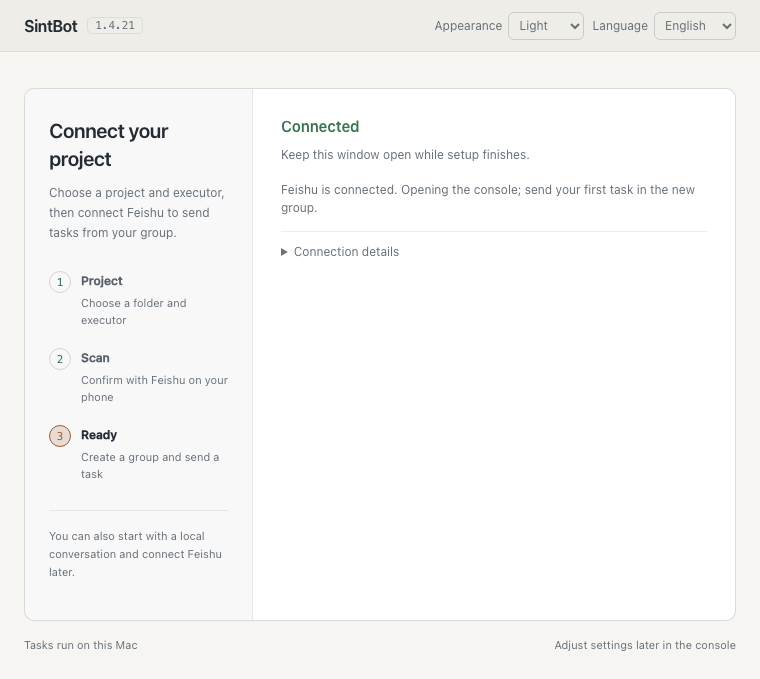
04 Send a task in the new group
Find the newly created project group in Feishu and check that SintBot is a member. Start with a read-only request:
Compare the reply with the file on your Mac. A correct reply verifies the group, executor and project path together. Continue with the Feishu group workflow.
Confirmed on your phone, but no new group?
If setup asks for a group, create one in Feishu, add the newly created bot, then paste the group ID into setup and select “Continue”. An ID starts with oc_…; it is not a group name or invitation link. Ask an administrator to finish publication and availability if the app is not available to you.
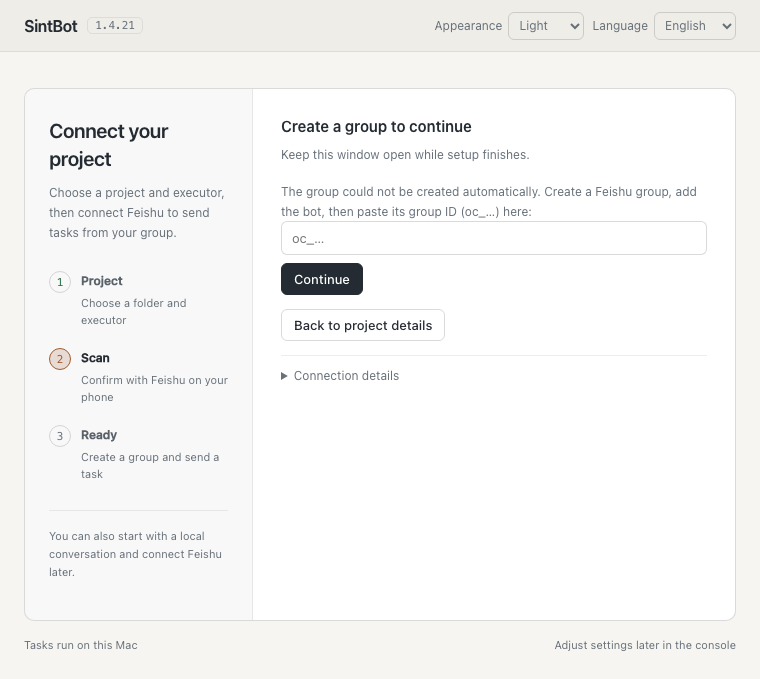
For other failures, use “Retry” or “Edit details” as prompted. A successfully connected project needs no repeated scan.
Already using local conversations?
An existing configuration opens the console directly. To add Feishu, let tasks finish, stop the service, run sintbot connect --attach and complete the scan, then start again. Configuration, records and local conversations are kept. The current console has no one-click attach action. See terminal installation and maintenance.
Connected, but the group gets no reply?
Check Settings → Feishu for connection status and Groups · Projects for the target group, folder and model. Confirm the bot is a member, the app is published, and message permissions and event subscriptions are enabled. Mention the bot if your group requires it.
WECOM · CHATS AND GROUPS
Connect your project to WeCom
Choose a project on your Mac, scan with WeCom on your phone to create a bot, then send it one message. SintBot receives tasks over a long connection, so you need no public callback URL and no group.
- 01Project
- 02Scan
- 03One message
- 04First task
Have Codex or Claude Code working on your Mac. Install WeCom on your phone and join or create an organization. Creating one is free and needs no verification; an organization with only you in it works too.
01 Choose your project on the Mac
First launch opens setup. Enter a project name, choose the executor, pick “企业微信 · WeCom” under Chat platform and select “Scan to create bot”. Use the new project folder or expand “Use an existing project folder”.
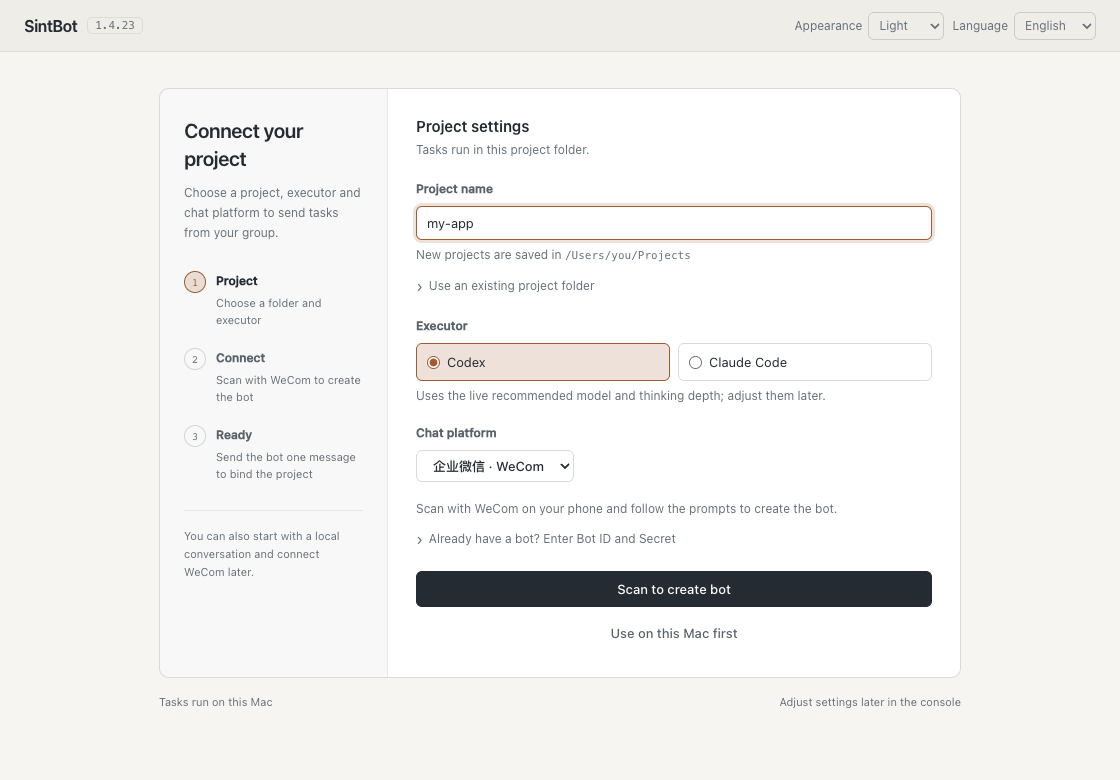
02 Scan with WeCom on your phone
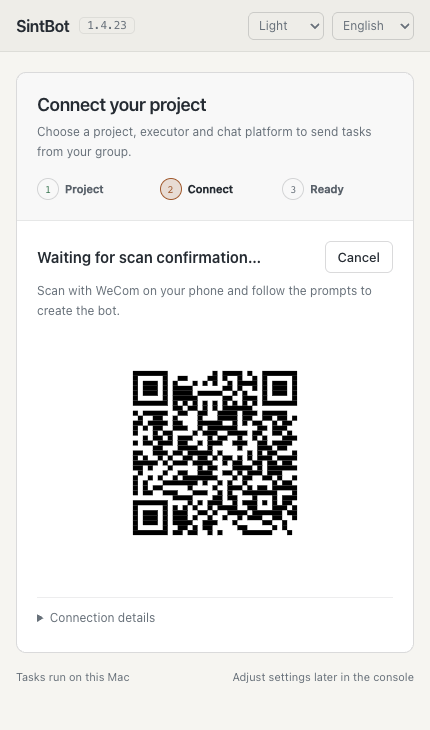
Keep setup open on your Mac and scan the code on your own page with the WeCom scanner on your phone.
- Check which organization is selected on your phone.
- Confirm creating the bot. It is named after you by default.
- The Bot ID and Secret are saved on this Mac. There is nothing to copy; never send them in a chat.
These images show interface states, and the code is for illustration only. Scan the new code on your own Mac; an expired code is replaced automatically.
03 Send the bot one message
When setup shows “Waiting for your message…”, send the bot any message in WeCom within 10 minutes: message it directly, or add it to a group and @mention it. Find it by searching its name at the top of WeCom, or under Workbench → Smart Bots.
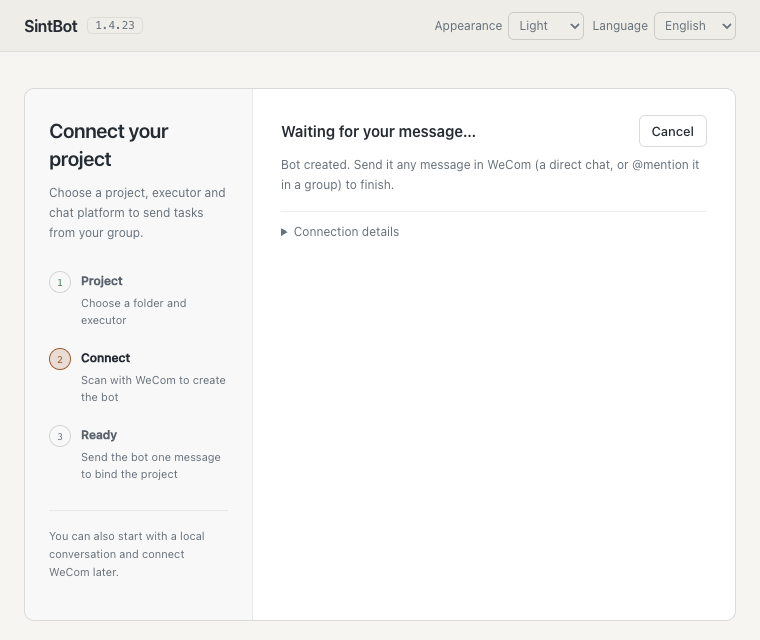
SintBot binds that chat to the project, the bot replies “已连接项目 …” (project connected) and setup opens the console.
04 Send your first task
In the same chat, start with a read-only request:
Check the reply against the first line of the file on your Mac. The bot replies when a task finishes; progress is not shown while it runs. Then continue with working in WeCom.
Already using Feishu or local chat? Add WeCom
Open Settings → WeCom in the console, choose the project folder and executor, select “Scan to create bot”, then send the bot one message as above. Your Feishu connection, local chat and projects are kept.
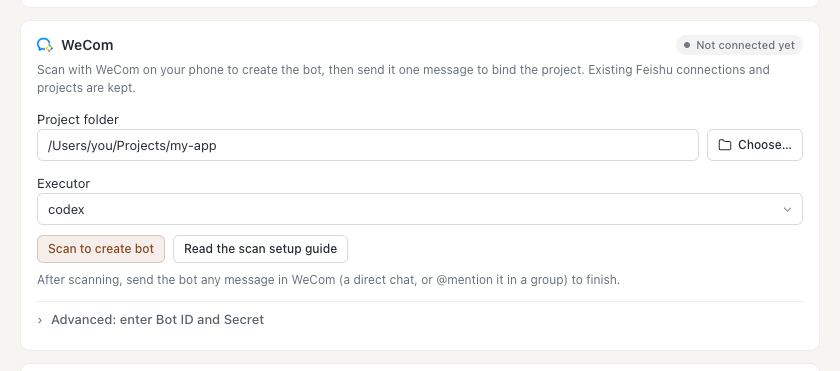
Once connected, the card shows the connection status and the number of bound projects. Expand Advanced for the Bot ID and to refresh the connection status.
Already have a bot? Enter Bot ID and Secret manually
Expand “Already have a bot? Enter Bot ID and Secret” on the setup page, or Advanced on the console’s WeCom card, enter the existing bot’s Bot ID and Secret, then send the bot one message. To create a bot manually, use either entry below, choose API mode and select “Use long connection”:
- WeCom desktop: Workbench → Smart Bots → Create bot → Manual creation.
- Admin console at work.weixin.qq.com: Security & Management → Management Tools → Smart Bots.
Bind another project
Create a WeCom group, add the bot and @mention it once, then pick that group under Groups · Projects → Set up a group project in the console and choose its folder and executor. One bot can serve several projects but connects to only one SintBot.
No reply to your message?
Check the connection status under Settings → WeCom. If it shows Disconnected, select Refresh connection status, check the network and make sure no other SintBot or tool is using this bot: each bot keeps only one connection at a time. In groups, @mention the bot; @All does not trigger it. If more than 10 minutes passed during setup without a message, select Retry on the setup page.
Alternative: terminal installation and maintenance
01
Prepare your project Mac
The terminal steps below are for SintBot 1.4.23 on macOS with Node.js 22 or later and Codex or Claude Code. Start with local conversations, or connect 1–32 Feishu China project groups. The desktop App includes Node.js.
- You can start with the automatically created project folder or choose an existing project on this Mac.
- Node.js is version 22 or later.
- Codex or Claude Code (at least one) is installed, signed in and working in your local terminal.
- You can confirm the connection using Feishu on your phone with a team identity.
How do I check my environment?
node --version
codex --version
claude --version
Node.js and the runner you use should report a version before you continue. Keep using your existing Codex or Claude Code installation and account.
What if a version check fails?
If a command cannot be found, finish installing that tool and open a new terminal. Get Node.js from its official website; follow the official instructions for your chosen coding agent to install it and sign in. The SintBot installer installs SintBot itself.
02
Install SintBot in one command
Copy this into your local terminal. The installer checks the environment, installs the package and verifies the result.
curl -fsSL https://sintbot.com/install.sh | bashWhen you see Installed and verified SintBot 1.4.23, installation is complete. Continue with Feishu and project configuration.
Optional: preview the installation plan
To inspect the plan before installing, use this command instead. It downloads no package and changes no configuration. Then run the installation command above.
curl -fsSL https://sintbot.com/install.sh | bash -s -- --dry-runOptional: check the version and help
SINTBOT="$HOME/.local/share/sintbot/bin/sintbot"
"$SINTBOT" --version
"$SINTBOT" help
SintBot is installed in ~/.local/share/sintbot. Continue below to connect Feishu and your project.
03
Open local setup
Run this command, then follow the Feishu walkthrough for your project, phone confirmation and group. You can also choose “Use on this Mac first”.
"$HOME/.local/share/sintbot/bin/sintbot" start --ui04
Choose the project on the setup page
By default setup creates ~/Projects/sintbot with a README and binds it to the new group. To connect an existing project, enter its absolute path in the existing-project field; the directory must exist. Do not use your entire home directory as a project. Afterwards, manage project folders and models under Groups · Projects in the console.
Prefer the terminal?
The same flow runs as sintbot connect; --name, --workdir, --provider and --basic map to the options on the page. See the full install guide.
05
Everyday start
When setup completes the service is already running; there is nothing else to run. Every later start uses the same command:
"$HOME/.local/share/sintbot/bin/sintbot" start --uiKeep the terminal open. Settings → Feishu shows the connection status; Groups · Projects manages bindings. Public console access and administrator sign-in are optional.
The console shows “Needs attention”?
After a power loss or forced restart during a task, the service holds the groups whose result is unknown and lists them on the overview’s “Needs attention” card; the service still starts when every group is held, so the console stays available. When the background service supports automatic restart and the other groups are idle and settled, click “Seal and continue”: the record is archived unchanged, that message is not processed again, and the service restarts by itself with a new record; resend the message if needed. In a foreground run, seal from a terminal as described in the full install guide.
Do not scan or initialize again for a normal restart. If you used --config or --data-dir, pass the same flags on every start.
06
Verify with a real message
Send this in the Feishu group you just connected:
Read the first line of this project’s README.md and reply with only that line.
Compare the reply with the file. This checks the group connection, the runner and the project path together.
Commands and console
Any text message is a task; the reply card appears once the model starts, or after 25 seconds if it is still working without output. While it runs, the card shows how long it has run, what it is doing and the steps already delivered, which fold into a Process section at the end. These commands are answered at once and never take a task slot:
/status- Model, project, busy or idle (steps and current work while busy), and queue.
/skip- Cancel only the current task; queued messages run next and the conversation is kept.
/stop- Stop the current task and cancel queued ones; the conversation is kept.
/new- Start a new conversation, forgetting the previous one, while the group is idle.
/model- Opens a tap-to-pick card: choose the backend, model and thinking depth, then confirm. You can also send
/model high,/model <model>or/model <backend>. A model or depth change continues the conversation; a backend change starts a new one. Only while the group is idle. /hud- Quota of the current model and usage of this conversation.
/issue text- Log feedback for the console.
/help- List commands, with this group's project and model.
Send a command as a message of its own; except for /issue and /model, add no other text. If the Feishu app subscribes to the message-recall event, recalling your own message cancels it.
With --ui, open http://127.0.0.1:4600 on this Mac to see every group, stop tasks, start a new conversation for an idle group, bind new groups, switch the model or project of an idle group, and add or configure models. Set a console password in its settings before enabling LAN access. To add a group without the console, add it to the configuration and restart; it is registered automatically.
Model and thinking depth are chosen per group: on the group card, the Model row picks the backend and model and the next row picks the depth, from lists read live from the local Codex and Claude Code. Choose the model and thinking depth for Codex, Claude and DeepSeek on each group card. DeepSeek connection settings and API key stay in the model library; other third-party endpoints keep their connection model there. After the upgrade, each model card’s existing model and depth move into its groups with the same effective values and no session reset.
Model settings are grouped into model and reasoning, context and compaction, and connection. For Codex, choose the executor default or a custom context window; known limits are checked on save. Compaction also offers default or custom, with numeric inputs shown only when needed. Codex uses a threshold and Claude Code a compaction window; either may compact earlier. Existing explicit global values become independent settings on existing models. Changes apply to the next turn and preserve the session. Capacity details distinguish requested settings from runtime reports.
For Claude Code groups, SintBot can compact the current session between turns when the CLI reports compaction support and the context reaches half of a custom compaction window. It uses a spare concurrency slot and stays silent in the group. A new message interrupts compaction before starting its turn; a window of 0 disables only idle compaction; compaction during a turn follows the executor’s defaults. /hud shows the compaction line and last completion time. Claude subscription quota prefers rate-limit events reported by the executor.
Stop and restart
In the running terminal, press Ctrl + C and wait for the process to exit. Keep the configuration from setup and use the same start command:
SINTBOT="$HOME/.local/share/sintbot/bin/sintbot"
"$SINTBOT" start --ui
Use start for normal restarts. Do not run init again.
The bot does not reply
Check the terminal error first. Verify that the application is published, the bot has joined the target group, message permissions and event subscriptions are configured, the credentials are valid and the project group is bound. A successful preflight does not prove Feishu authentication or message delivery.
A group is paused or startup reports unresolved receipts
When a group's last result cannot be confirmed, only that group is held and the console stays available. Check what the task actually did. If the console offers “Seal and continue”, use it to archive the record unchanged and restart the service. Otherwise stop the service, run sintbot incident seal --group <group ID> and start again. Do not clear logs, overwrite unknown outcomes or blindly resend the task.
NEXT
Start your next task
Learn how to frame a task, share project context and review the result.
Read the usage guide