FEISHU · CLAUDE CODE / CODEX
A Feishu group for your project
Scan with the Feishu mobile app to connect SintBot on your Mac. The setup creates the app and a project group, so tasks and results stay in the group your team uses.
Before you start
Use a Mac that stays awake, with Claude Code or Codex installed and its account configured. The desktop app includes Node.js. Follow the download and first-launch steps before connecting a chat platform.
FEISHU · PROJECT GROUPS
Connect your project to Feishu
Choose a project on your Mac, confirm on your phone, then send a task in the new group. Desktop and terminal installations share this setup flow.
- 01Project
- 02Confirm
- 03Create group
- 04First task
Have Codex or Claude Code working on your Mac. Sign in to Feishu China on your phone with an enterprise or team identity; create or join a team first if needed. Your organization may require administrator approval.
01 Choose your project on the Mac
First launch opens setup. Enter a project name and choose the executor. Use the new project folder or expand “Use an existing project folder”. Select “Connect Feishu”.
If you are not an organization administrator, expand “Organization options” and select “I am not an organization administrator”. An administrator will need to finish app availability and publication.
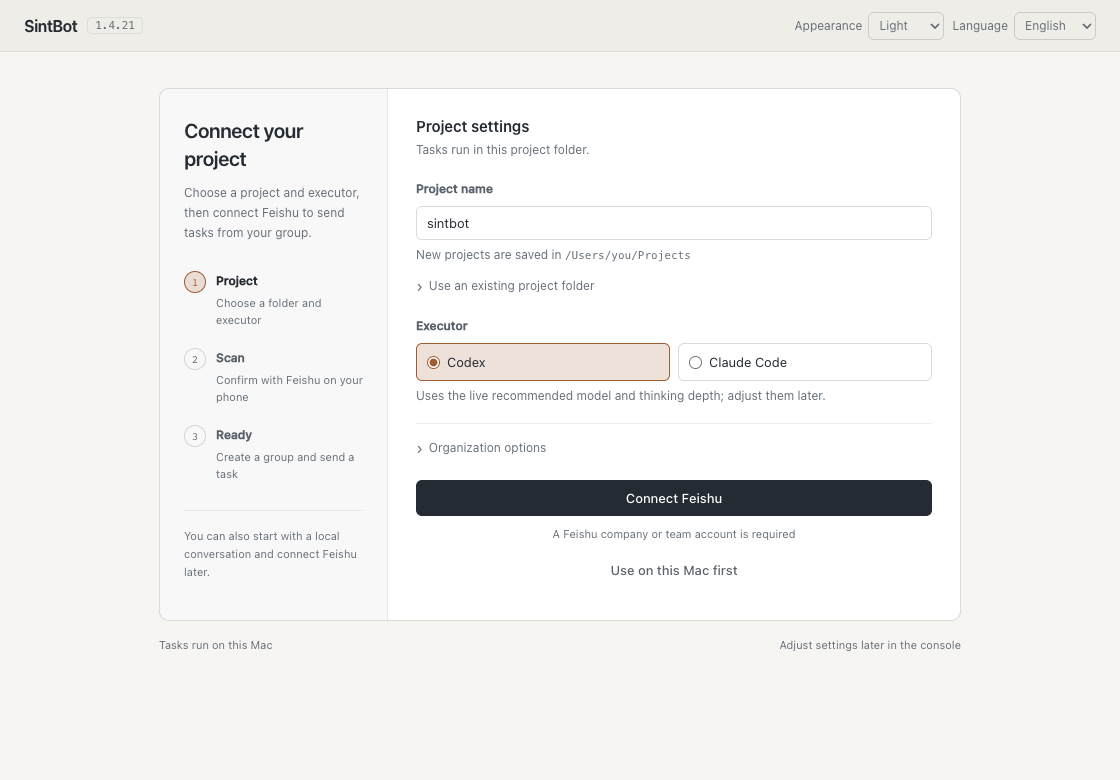
02 Confirm with Feishu on your phone
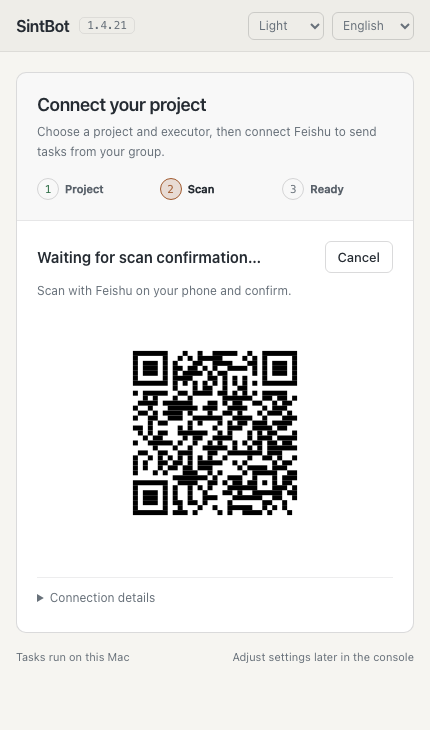
Keep setup open on your Mac. Use the scanner in the Feishu mobile app to scan the code on your own setup page.
- Check the enterprise or team selected on your phone.
- Review the app’s team and requested permissions.
- Confirm on your phone, then return to your Mac.
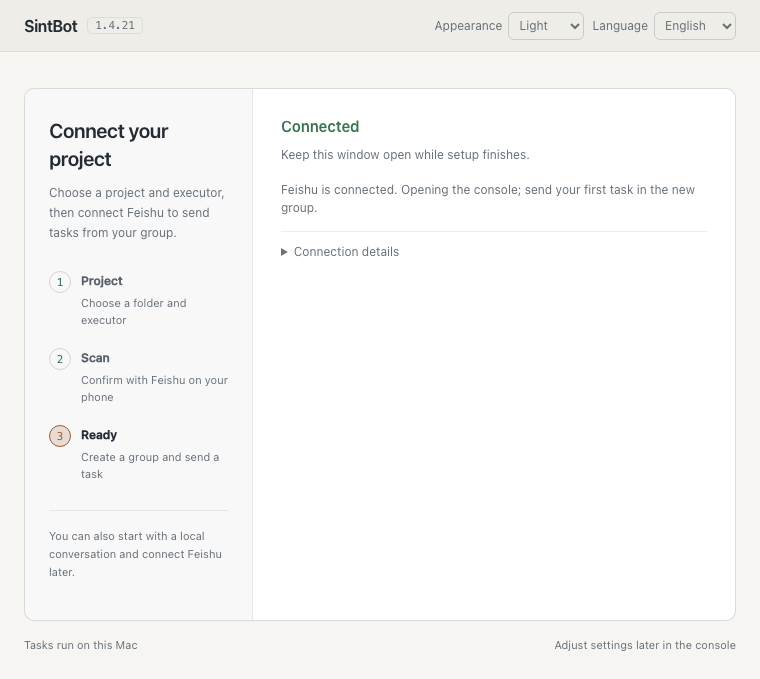
These images show setup states. The pictured code is for this walkthrough; use the fresh code on your own Mac to connect.
03 Wait for the app and group
SintBot creates the app, checks permissions, creates a project group and saves configuration. Keep the window open. Expand “Connection details” to follow progress; setup opens the console when complete.
04 Send a task in the new group
Find the newly created project group in Feishu and check that SintBot is a member. Start with a read-only request:
Compare the reply with the file on your Mac. A correct reply verifies the group, executor and project path together. Continue with the Feishu group workflow.
Confirmed on your phone, but no new group?
If setup asks for a group, create one in Feishu, add the newly created bot, then paste the group ID into setup and select “Continue”. An ID starts with oc_…; it is not a group name or invitation link. Ask an administrator to finish publication and availability if the app is not available to you.
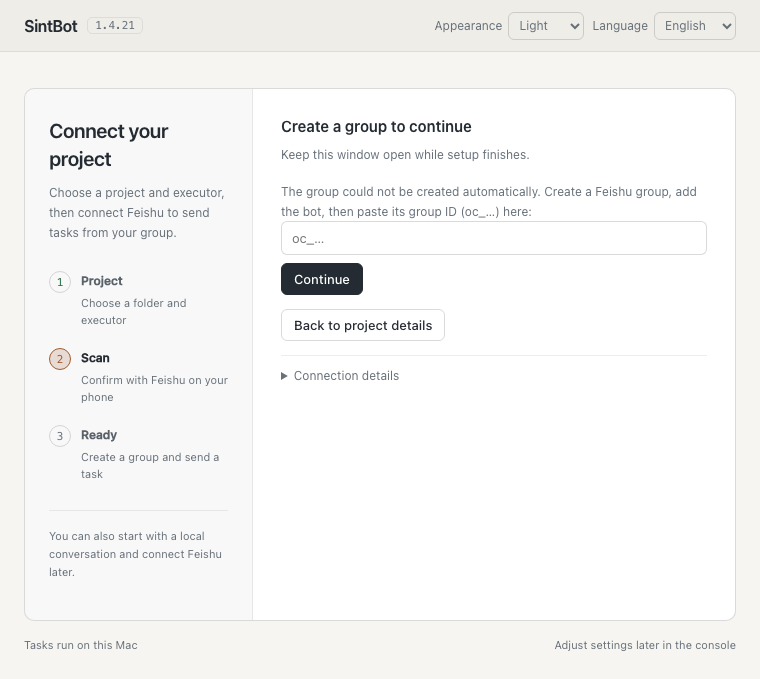
For other failures, use “Retry” or “Edit details” as prompted. A successfully connected project needs no repeated scan.
Already using local conversations?
An existing configuration opens the console directly. To add Feishu, let tasks finish, stop the service, run sintbot connect --attach and complete the scan, then start again. Configuration, records and local conversations are kept. The current console has no one-click attach action. See terminal installation and maintenance.
Connected, but the group gets no reply?
Check Settings → Feishu for connection status and Groups · Projects for the target group, folder and model. Confirm the bot is a member, the app is published, and message permissions and event subscriptions are enabled. Mention the bot if your group requires it.
Verify your first real task
After the connection is bound, send a separate task:
Read the first line of the project README and reply with only that line.
Compare the answer with the file on your Mac. Then try “Summarize the Git status without changing any files” before requesting a small, reversible edit. This verifies the platform, project folder and coding agent together.
Everyday use and current limits
This guide covers Feishu project groups. Add context in the group, use /status to check activity, /stop to cancel, and /model while idle to choose a model. Each group is bound to a local folder; add another group project in the console for another project.
Model availability depends on your installed coding agent and configured services. Verify third-party API access separately, and keep keys out of chat. The Mac must stay awake with SintBot running.