WECOM · CLAUDE CODE / CODEX
Your WeCom conversation, your Mac
Connect a WeCom bot by QR code, then bind its first direct message or group @mention to a project. SintBot uses Claude Code or Codex to work with the files on your Mac.
Before you start
Use a Mac that stays awake, with Claude Code or Codex installed and its account configured. The desktop app includes Node.js. Follow the download and first-launch steps before connecting a chat platform.
WECOM · CHATS AND GROUPS
Connect your project to WeCom
Choose a project on your Mac, scan with WeCom on your phone to create a bot, then send it one message. SintBot receives tasks over a long connection, so you need no public callback URL and no group.
- 01Project
- 02Scan
- 03One message
- 04First task
Have Codex or Claude Code working on your Mac. Install WeCom on your phone and join or create an organization. Creating one is free and needs no verification; an organization with only you in it works too.
01 Choose your project on the Mac
First launch opens setup. Enter a project name, choose the executor, pick “企业微信 · WeCom” under Chat platform and select “Scan to create bot”. Use the new project folder or expand “Use an existing project folder”.
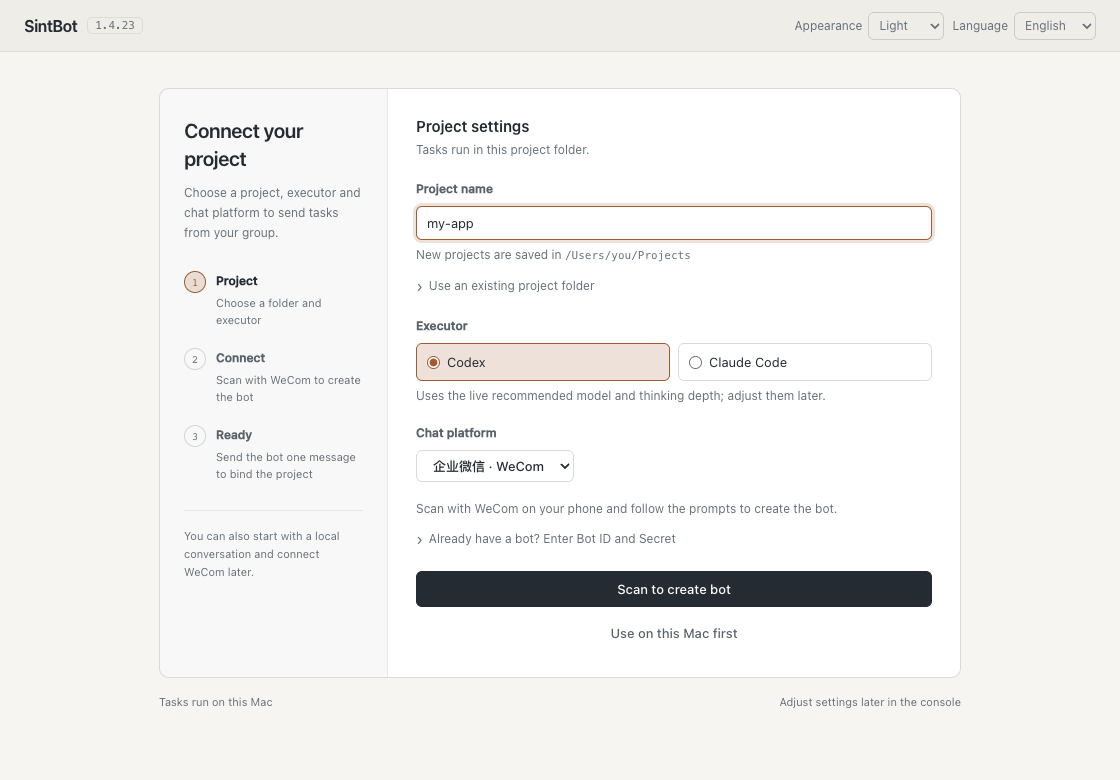
02 Scan with WeCom on your phone
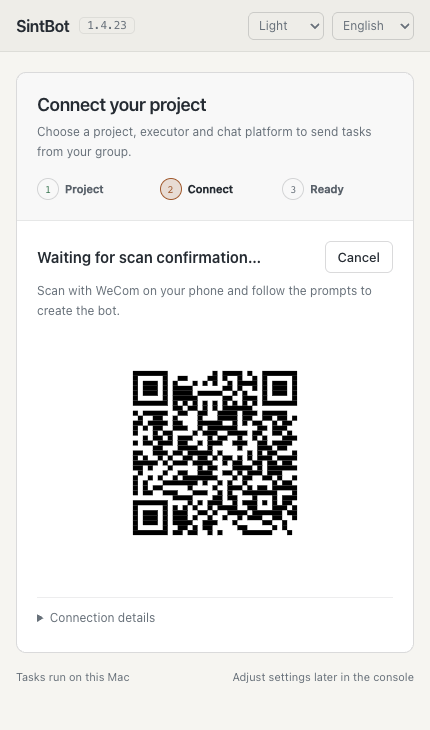
Keep setup open on your Mac and scan the code on your own page with the WeCom scanner on your phone.
- Check which organization is selected on your phone.
- Confirm creating the bot. It is named after you by default.
- The Bot ID and Secret are saved on this Mac. There is nothing to copy; never send them in a chat.
These images show interface states, and the code is for illustration only. Scan the new code on your own Mac; an expired code is replaced automatically.
03 Send the bot one message
When setup shows “Waiting for your message…”, send the bot any message in WeCom within 10 minutes: message it directly, or add it to a group and @mention it. Find it by searching its name at the top of WeCom, or under Workbench → Smart Bots.
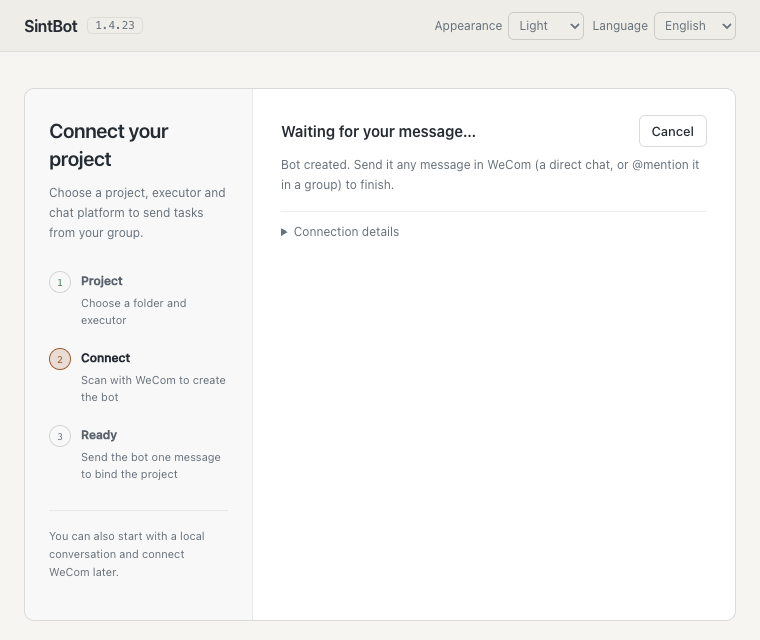
SintBot binds that chat to the project, the bot replies “已连接项目 …” (project connected) and setup opens the console.
04 Send your first task
In the same chat, start with a read-only request:
Check the reply against the first line of the file on your Mac. The bot replies when a task finishes; progress is not shown while it runs. Then continue with working in WeCom.
Already using Feishu or local chat? Add WeCom
Open Settings → WeCom in the console, choose the project folder and executor, select “Scan to create bot”, then send the bot one message as above. Your Feishu connection, local chat and projects are kept.
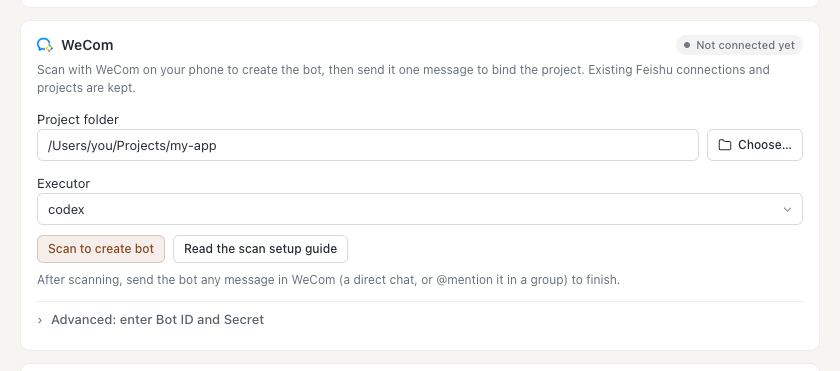
Once connected, the card shows the connection status and the number of bound projects. Expand Advanced for the Bot ID and to refresh the connection status.
Already have a bot? Enter Bot ID and Secret manually
Expand “Already have a bot? Enter Bot ID and Secret” on the setup page, or Advanced on the console’s WeCom card, enter the existing bot’s Bot ID and Secret, then send the bot one message. To create a bot manually, use either entry below, choose API mode and select “Use long connection”:
- WeCom desktop: Workbench → Smart Bots → Create bot → Manual creation.
- Admin console at work.weixin.qq.com: Security & Management → Management Tools → Smart Bots.
Bind another project
Create a WeCom group, add the bot and @mention it once, then pick that group under Groups · Projects → Set up a group project in the console and choose its folder and executor. One bot can serve several projects but connects to only one SintBot.
No reply to your message?
Check the connection status under Settings → WeCom. If it shows Disconnected, select Refresh connection status, check the network and make sure no other SintBot or tool is using this bot: each bot keeps only one connection at a time. In groups, @mention the bot; @All does not trigger it. If more than 10 minutes passed during setup without a message, select Retry on the setup page.
Verify your first real task
After the connection is bound, send a separate task:
Read the first line of the project README and reply with only that line.
Compare the answer with the file on your Mac. Then try “Summarize the Git status without changing any files” before requesting a small, reversible edit. This verifies the platform, project folder and coding agent together.
Everyday use and current limits
Verify the first task in a direct conversation before adding a project group. @mention the bot for group tasks. A WeCom bot supports only one long connection, so do not share it between two Macs. Keep SintBot running and the Mac awake.
The QR flow does not preset the bot name; rename it using WeCom’s controls if needed. Message display and media capabilities differ from Feishu. Refer to the installation guide for the current supported scope.